
Moving to a new phone copies your photos, your messages and your applications. It does not reliably copy the thing that opens your accounts. Authenticator codes are generated from a secret stored on the device, and that secret is deliberately hard to copy, which is exactly what makes it a decent second factor and exactly what makes moving day awkward.
The good news is that the whole problem is one of ordering. Do it in the right order and it takes twenty minutes. Do it in the wrong order and you spend a weekend on support forms.
The rule that decides everything
Keep the old phone working until the new one has signed in to every account at least once.
Not until the app looks right. Not until the codes appear. Until you have actually completed a sign-in with the new device. An authenticator can display six digits that no longer match what the server expects, and you only find out at the login screen.
Nothing gets deleted, wiped, traded in or factory reset until that check is done. This is the whole article in one line.
What actually transfers, and what does not
Authenticator apps fall into two groups, and they behave very differently.
Apps with a transfer or cloud restore. Google Authenticator and Microsoft Authenticator can move a batch of accounts to a new device, either through a QR code shown on the old phone or through an account-linked backup. This is the fast path when it works.
Apps without one. Some authenticators, by design, keep the secret on the device and offer no export at all. That is a security decision rather than an oversight, and it means one thing for you: every account has to be enrolled again by hand.
⚠️ And a general phone backup is not a substitute. People assume that because the backup restored their applications, it restored their codes. Often it restored the app and nothing inside it. Open the app on the new phone and look before you conclude anything.
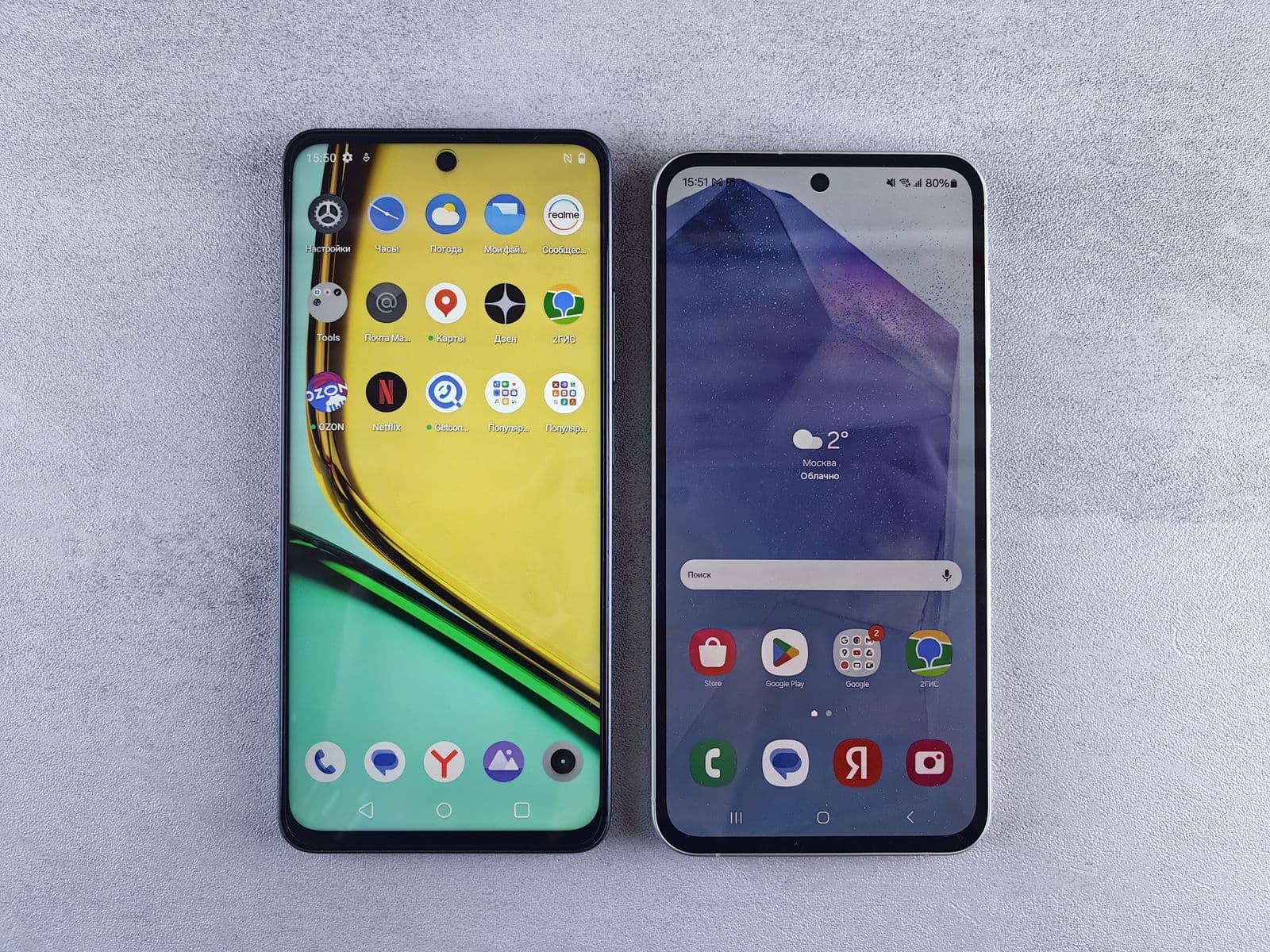
Two phones, both unlocked, both in front of you. That picture is the entire easy version of this task, and it is only possible while you still have the old device. Everything difficult below comes from not having it.
The normal case, step by step
- Set up the new phone and install the authenticator before touching anything on the old one.
- Run the app's own transfer if it has one, from old device to new.
- List your accounts on paper. Email, bank, work, cloud storage, social, domain registrar, password manager itself. The registrar and the email account are the ones people forget, and they are the ones that unlock everything else.
- Sign in to each account with the new phone. Not a glance at the code: an actual sign-in.
- Remove the old device from each account's security settings once the new one works.
- Only now wipe or hand over the old phone.
Step 3 is the one that gets skipped, and it is the one that hurts. An account you forget to migrate is invisible until the day you need it.
Changing app is not the same as changing phone
This trips up more people than the migration itself. Moving from one authenticator to another is a re-enrolment on every service, not a transfer, unless the two apps explicitly support an import. Each service issued its own secret to your old app, and only that service can issue a new one.
So if you were planning to switch apps and phones at the same time, split it: migrate first, verify, then switch app later with both devices still available.
When the old phone is already gone
This is the case the search box is full of, and it has a clear answer: stop looking for a transfer, there is none. You are now doing account recovery, one service at a time.
With backup codes, it is straightforward. Sign in with your password, use a code as the second step, then enrol the new phone from the security settings. Each code works once, so cross them off as you go. Our guide to backup codes covers where they should live and why storing them on the phone running the authenticator quietly collapses your two factors into one.
With a second security key, it is easier still: the key is the second factor, and the phone is irrelevant. That is the argument for keeping a second key in a drawer, and it costs less than the afternoon you would otherwise spend on support tickets.
With neither, you fall back on each provider's recovery process. Expect identity checks and delays measured in days. We publish no figure on how often that recovery fails, because it varies enormously between providers and any number here would be misleading. What is safe to say is that it is the slowest path and the only one with no guarantee at the end. It is worth doing in a deliberate order: get into your email account first, because it is the recovery address for most of the others.
If the phone was stolen rather than lost
Treat it as an incident, not an inconvenience. Remove the old device from every account's security settings as soon as you regain access, so it can no longer approve a sign-in. A thief who unlocks the phone has your second factor sitting on the home screen, and revoking it is the only thing that closes that door.
The short version
- Do not wipe the old phone until the new one has completed a real sign-in on every account.
- Some apps transfer, some do not. A general phone backup usually does not carry your codes.
- Changing app is a re-enrolment, service by service. Do not combine it with changing phone.
- List your accounts first. The domain registrar and the email account are the ones people forget.
- Without the old phone, backup codes or a second key are the whole difference between twenty minutes and a lost weekend.
★ Cure53 audit · ✓ Free plan · Cross-platform
Lock down your accounts → NordPassStrong unique passwords · breach scanner · free tier→Frequently asked questions
Does an authenticator app transfer to a new phone automatically?
Not by default. A phone-to-phone migration copies applications and data, but the authenticator secrets are stored in a way that often does not survive the move, and some apps deliberately refuse to be restored from a backup. Assume nothing transferred until you have opened the app on the new phone and seen your accounts listed with codes running.
Can I set up an authenticator on a new phone without the old one?
Yes, but not through the app. Without the old phone you cannot export anything, so you go account by account on each service, sign in with your password plus a backup code, and enrol the new device from the security settings. The backup codes are what make this possible, which is why they matter more than the app you choose.
Should I delete the authenticator app from the old phone straight away?
No. Keep the old phone working, and the app on it, until you have signed in to every account with the new device at least once. Deleting the app or wiping the phone before that check is the single most common way people lock themselves out.
Do I have to re-enrol every account one by one?
It depends on the app. Google Authenticator and Microsoft Authenticator offer a transfer or cloud restore that moves many accounts together. Apps without that feature, and any account that refuses the import, have to be re-enrolled individually from each service's security settings.
What if my phone was lost or stolen rather than replaced?
Treat it as an account recovery, not a migration. Use your backup codes or a second security key to get back in, then remove the old device from each account's security settings so it can no longer approve sign-ins. If you had no codes and no second factor, you fall back on each provider's recovery process, which is slower and sometimes fails.


